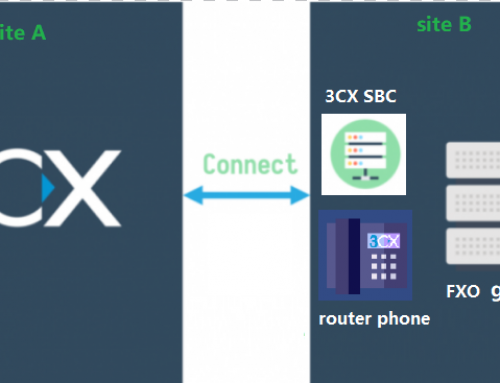
In addition to providing dedicated local lines connected to the network port of the 3CX server, Hong Kong telecom operator HKT also provides public SIP registration accounts for inbound and outbound calls. This document provides a detailed guide on how to configure the HKT Public SIP Trunk on a 3CX server.
Assume the following account information is provided by HKT provider:
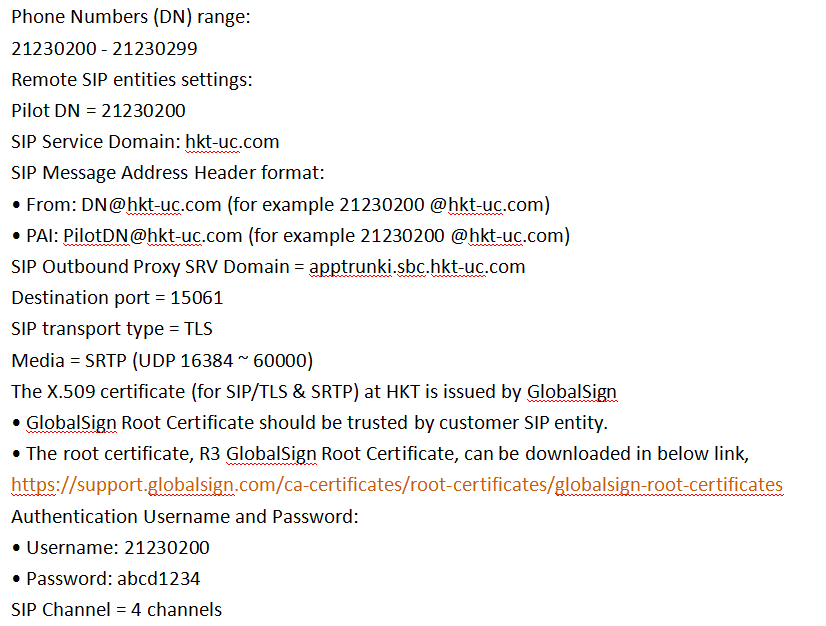
Setup Steps:
1.Import Provider Template
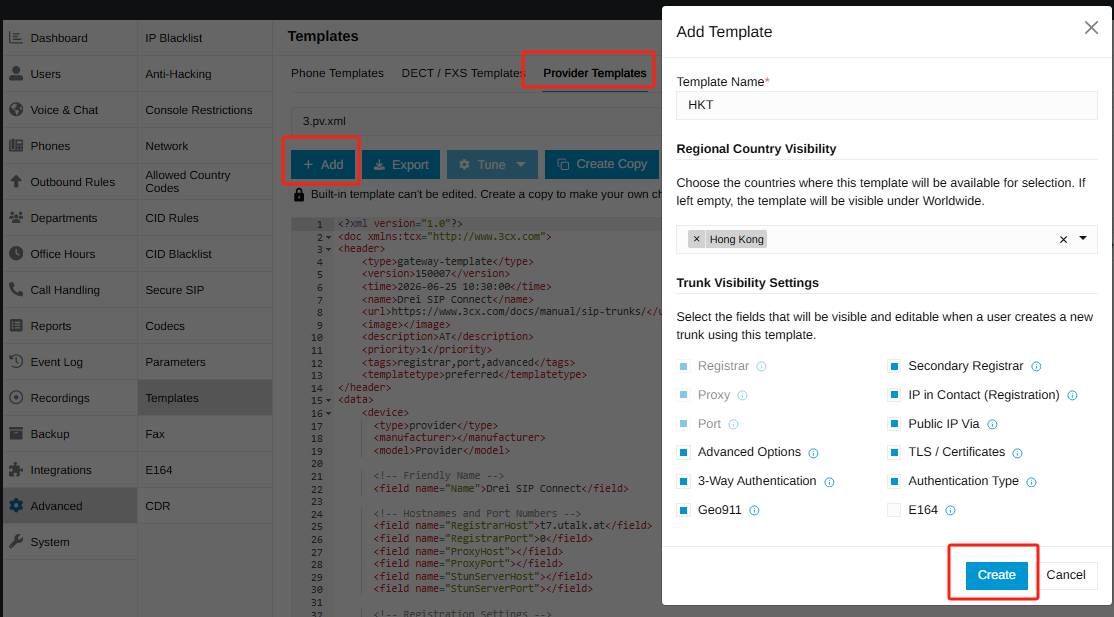
- Go to the 3CX Management Console, navigate to Advanced -> Templates -> Provider Templates.
- Click + Add to add the HKT template, then click Create.
2. Create a New SIP Trunk Using the Template
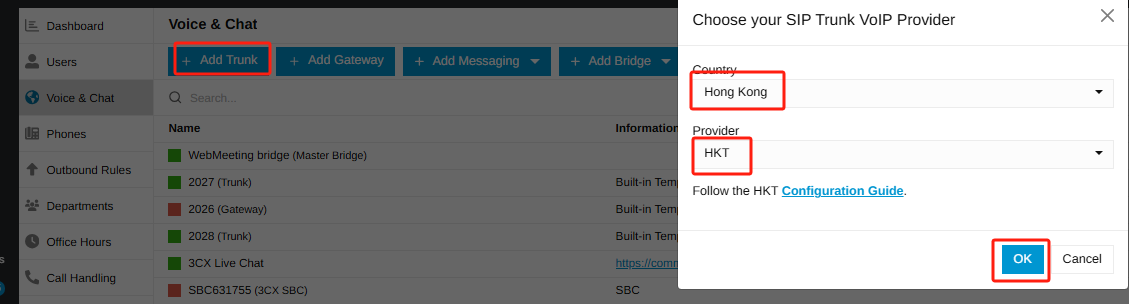
- Navigate to the Voice & Chat menu and click + Add Trunk.
- Select Hong Kong for Country and HKT for Provider (the template created in Step 1), then click OK.
3. Configure Basic Trunk Settings and Account Details
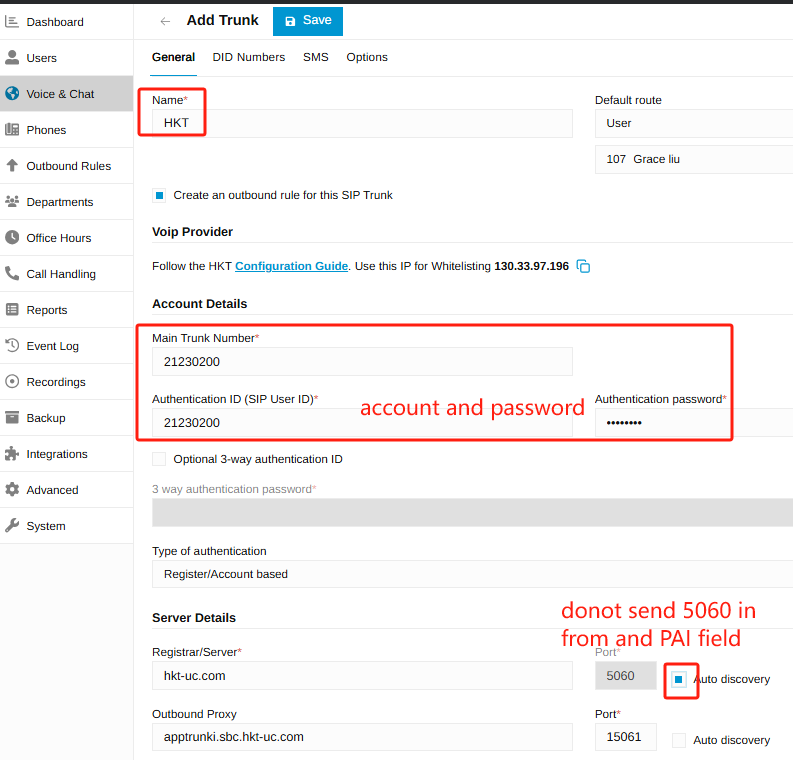
- Trunk Name: Custom name (e.g., HKT).
- Account Authentication: Enter Authentication ID and Password.
- Server Details: Check Auto discovery (ensuring port 5060 is not forcibly sent to HKT in From and PAI headers).
4. Add DID Ranges
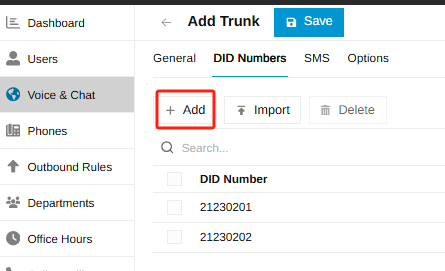
- Switch to the DID Numbers tab, click + Add to manually add assigned numbers (e.g., 21230201, 21230202…), or click Import to batch import DIDs.
5. Advanced Options & Security Settings
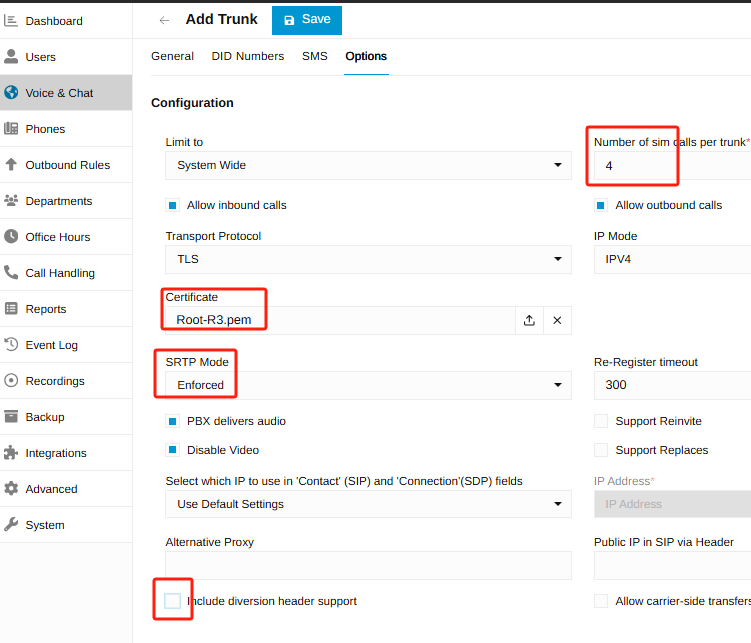
- Concurrency Limit: In the Options tab, set Number of sim calls per trunk to 4 (or according to purchased channel count).
- Certificate Upload: In the Certificate section, upload the required HKT root certificate file (e.g., Root-R3.pem).
- SRTP mode: Set SRTP Mode to Enforced (HKT only supports SRTP encryption and requires SRTP).
- disable Include diversion header support: HKT does not require this, so disabling it is recommended.
6. Configure Outbound Rules
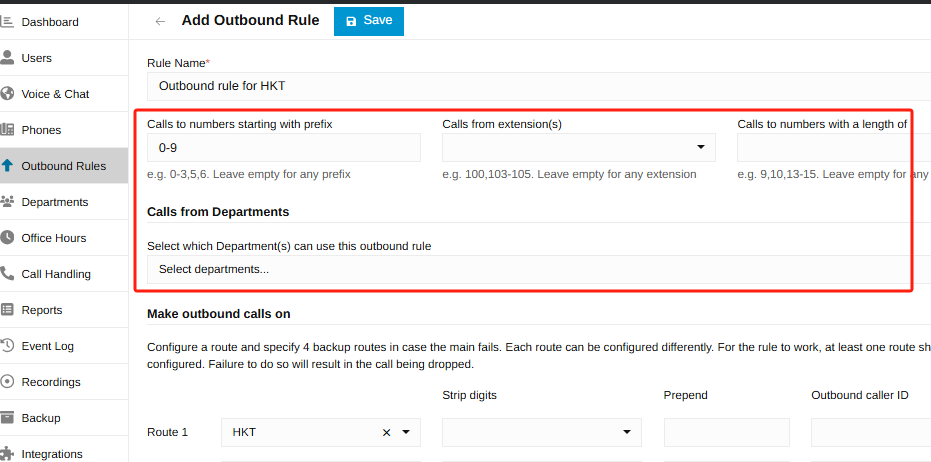
- After saving the SIP Trunk, navigate to Outbound Rules to create a matching rule for this HKT Trunk.
- Configure trigger criteria as needed (Prefixes, Extensions, Number Length, or Departments — at least one of these 4 criteria must be set), then click Save.
7. Verify Trunk Registration Status
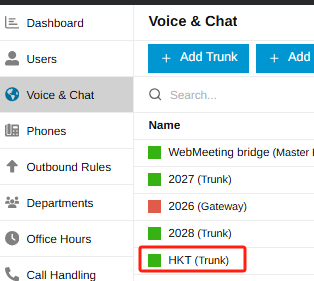
- Return to the Voice & Chat list and check the status indicator for HKT (Trunk).
- A green icon indicates a successful handshake with the HKT public server and successful TLS/SRTP registration.
8. Configure Two-Way Binding Between Extensions and DID Numbers
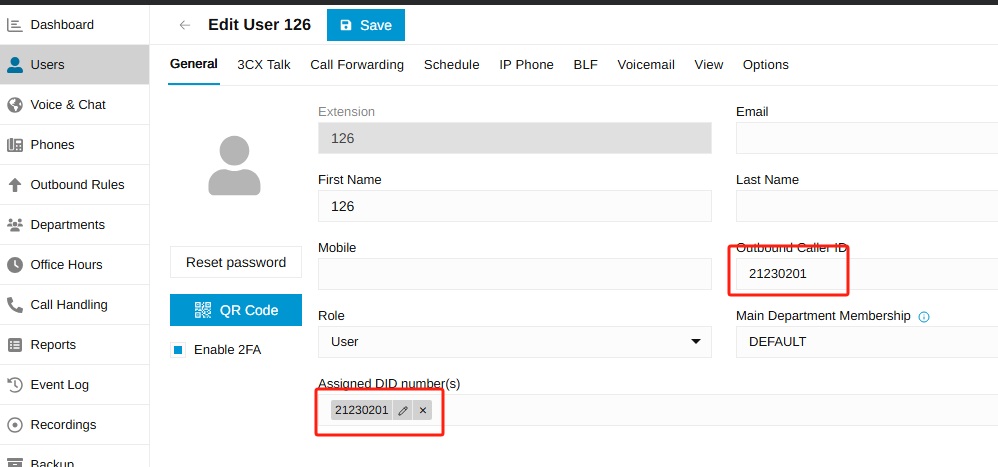
- On the General page of the user settings (e.g., Extension 126), bind the assigned DID number (e.g., 21230201) under Assigned DID number(s).
- Enter the same number (21230201) in Outbound Caller ID.
- Configuration Result: Inbound calls to 21230201 will directly ring Extension 126; when Extension 126 makes outbound calls, the caller ID displayed to the remote party will be 21230201.